A browser proxy changes where page requests come from. DNS lookups, WebRTC connections and the browser's time zone can still point to the machine's own network. This guide shows how to check each one with ToDetect's free tools, what a pass and a fail look like, and which fixes held up in our test.
The worked example is a real test that ipvolt ran:
- When: 23 October 2026, 16:45 to 16:57 UTC.
- Machine: a Mac running macOS 15.7.4.
- Browsers: Chromium 153 and Firefox, driven by Playwright 1.63.0, in headless mode and in normal windows.
- Proxy: a 4G mobile proxy on Vodafone Germany that we use for pre-launch testing, set up as an HTTP proxy with a username and password. Germany proxies covers the German mobile network context.
- The machine's own connection: a commercial VPN exit in Tallinn, Estonia, which is a datacenter address.
- Masking: IP addresses are masked in the screenshots and removed from the results file, which lists the counts and scores from every run.
1. Get a baseline without the proxy
Run each test once with the proxy off, so you know what your own connection looks like. Our baseline on ToDetect's IP Quality Check was: location Tallinn, IP type Datacenter, ASN organization labelled HOSTING, and an IP Quality Score of 68%. The DNS Leak Test showed one resolver, the VPN's, in Estonia.
2. Check the IP the website sees
Turn the proxy on and reload the IP Quality Check. Check four fields against what you expect from the proxy: location, ISP and ASN, IP type, and time zone.
Through the mobile proxy, the page showed Berlin, ISP D2VODAFONE, ASN 3209 (Vodafone GmbH), IP type Mobile, IP Abuse "No", time zone Europe/Berlin and language German.
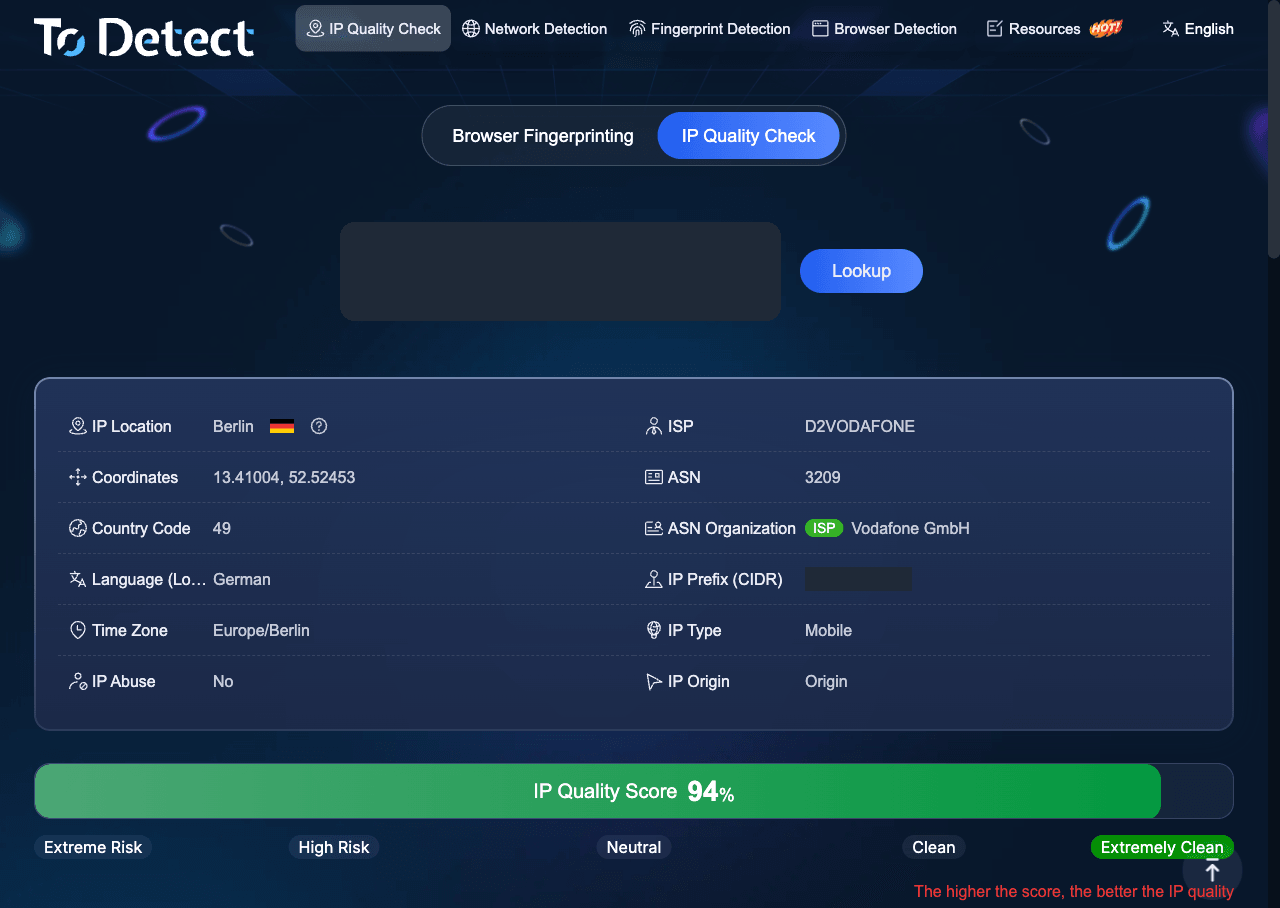 ToDetect IP Quality Check through the 4G test line, 23 October 2026. IP address and prefix masked.
The score is built from listed deductions, and you can open them to see why it changed:
| Connection | IP type | Score | Deductions shown |
|---|---|---|---|
| Machine's own (VPN, Estonia) | Datacenter | 68% | IP Usage Frequency -3%, VPS/IDC Provider -25%, Occasional ASN Organization Change -4% |
| 4G mobile proxy (Vodafone Germany) | Mobile | 94% | IP Usage Frequency -3%, Regional ISP -3% |
Most of the gap is the VPS/IDC Provider deduction. A pass means the location, ISP and IP type match the proxy you configured; step 5 compares the time zone with the browser. If you still see your own ISP or city, the browser is not using the proxy, and the other tests will not mean much until that is fixed. The score reflects ToDetect's own databases; treat it as one signal.
3. Check where DNS is resolved
Run the DNS Leak Test with the proxy on. It lists the DNS resolvers that answered lookups for your browser. A pass is a resolver list that belongs to the proxy's network or a resolver you chose on purpose. A fail is your own ISP's or your own network's resolver.
Through the proxy, the resolvers were 139.7.74.9 and 139.7.74.10, both "Vodafone Germany, Germany". The Estonian resolver from the baseline was gone.
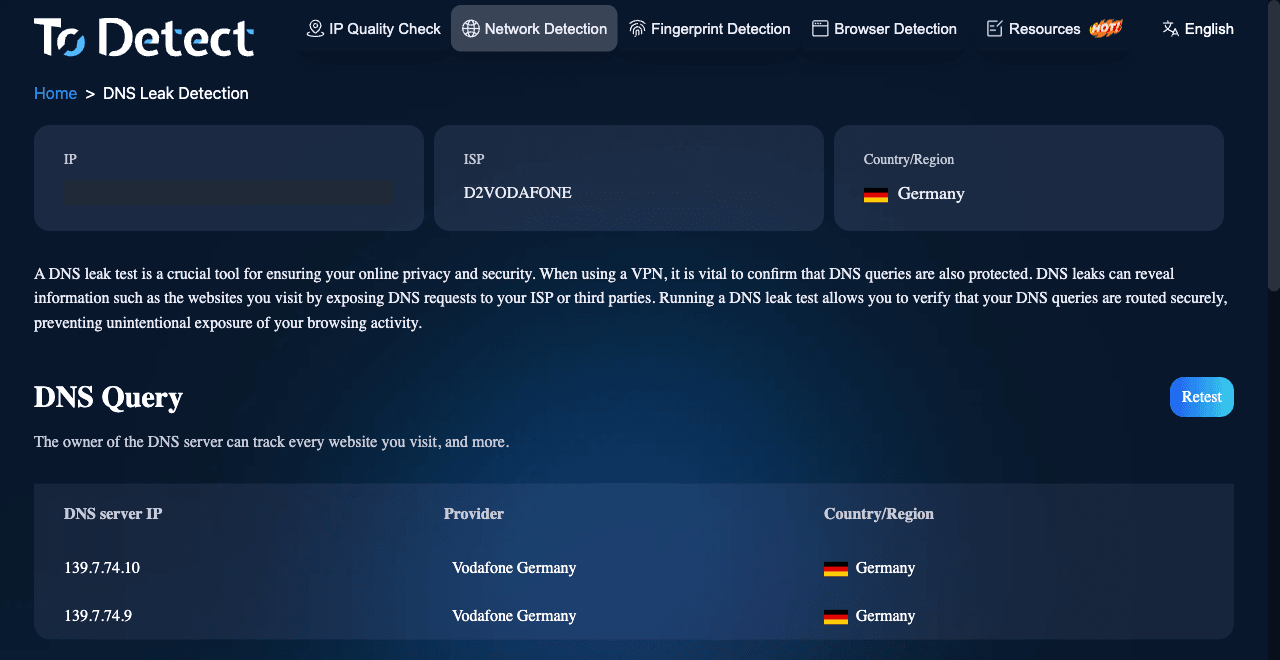 Both resolvers belong to Vodafone Germany. The client IP at the top is masked.
This is expected for an HTTP proxy in Chromium, whose documentation says "name resolution is always deferred to the proxy": the hostname travels in the CONNECT request. DNS leaks can happen with SOCKS4, or with SOCKS5 clients that resolve names locally before connecting, such as curl with socks5:// rather than socks5h://. SOCKS5 vs SOCKS5h covers that case.
4. Check WebRTC
Open the WebRTC Leak Test. It asks 17 STUN servers which public address your browser appears to come from. A pass is "Not detected" or the proxy's address for every server. A fail is the red "WebRTC IP Exposure Detected" banner and your own address in the Public IP fields.
With default settings, both browsers failed:
- Chromium, default: 13 of 17 STUN servers returned the machine's own address (11 or 12 as IPv4, 1 or 2 as IPv6, across three runs). The other 4 showed "Not detected".
- Firefox, default: 10 of 17 returned the machine's own IPv4 address and 4 showed "Not detected". The other 3 showed 0.0.0.0, which revealed neither IP; we did not determine why.
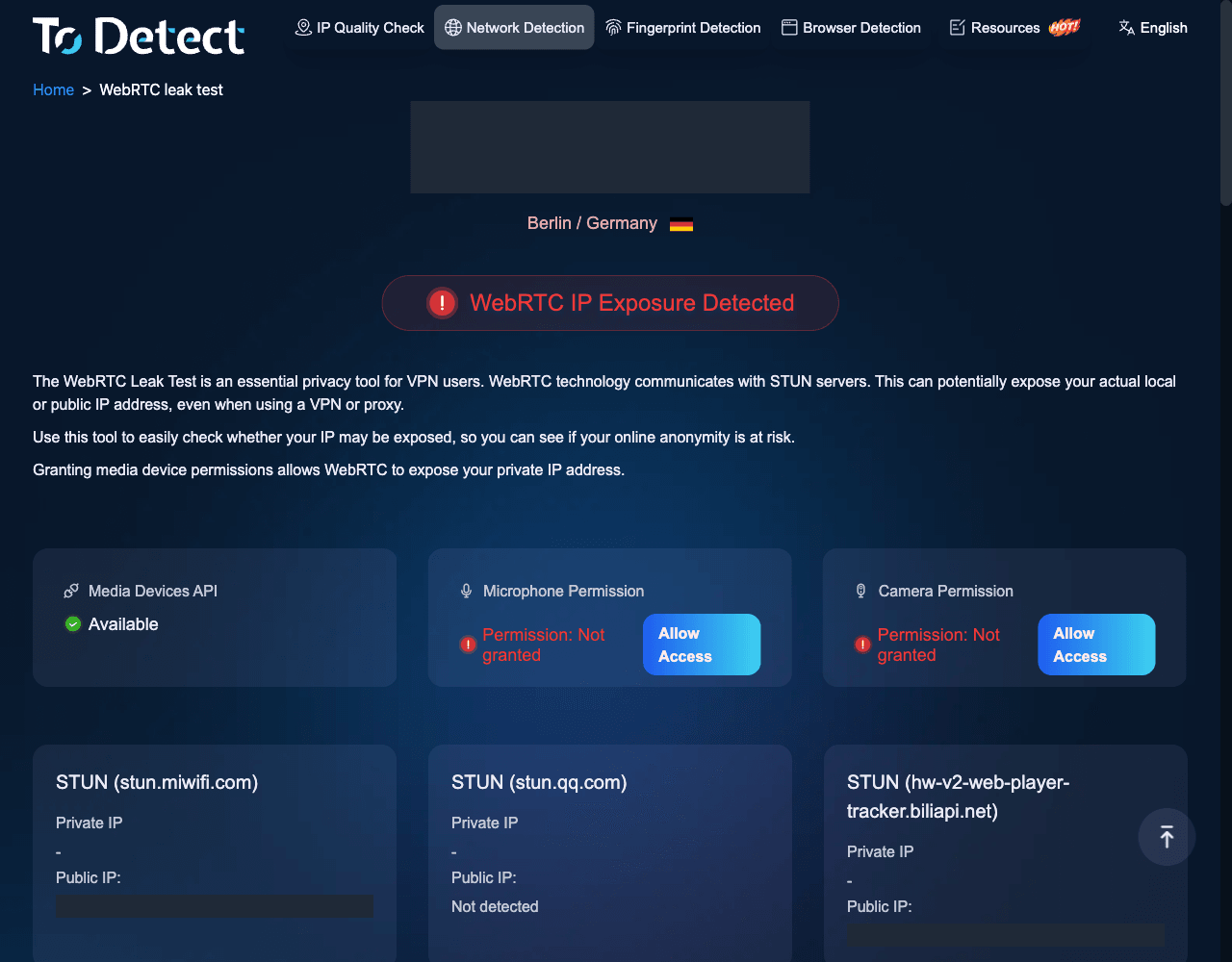 The page places the connection in Berlin, from the proxy's IP, but STUN servers returned the machine's own address (masked): 13 of 17 in this run. The crop shows three.
The reason is the transport. WebRTC sends STUN requests over UDP. A standard HTTP proxy relays only TCP connections, so by default those requests go out over the machine's own connection, and the STUN server sees that public IP. RFC 8828 describes this case: if direct Internet access is permitted, "WebRTC's STUN checks will bypass the proxy and reveal the public IP address of the client."
Fixes we tested
| Browser and setting | STUN servers showing the machine's own address | Result |
|---|---|---|
| Chromium, default | 13 of 17 (three runs) | Leak |
Chromium headless, --force-webrtc-ip-handling-policy=disable_non_proxied_udp | 0 of 17 (one run) | Pass |
| Chromium in a normal window, same flag | 13 of 17 (two runs) | Leak |
Chromium in a normal window, profile preference webrtc.ip_handling_policy = disable_non_proxied_udp | 0 of 17 (two runs) | Pass |
| Firefox, default | 10 of 17 (one run) | Leak |
Firefox, media.peerconnection.ice.proxy_only = true | 0 of 17 (one run) | Pass |
Counts include both IPv4 and IPv6 addresses.
The command-line flag fixed headless Chromium but not a normal window. Chromium's source reads the switch in the headless shell, while normal Chrome reads the webrtc.ip_handling_policy profile preference. We found no documentation saying the flag is ignored in a normal window, so treat this as a measured result, not a documented rule.
The Chromium fix we measured writes the preference into the profile's Default/Preferences file before launch. In Playwright, that needs a persistent context:
import { chromium } from 'playwright';
import { mkdtempSync, mkdirSync, writeFileSync } from 'node:fs';
import { tmpdir } from 'node:os';
import { join } from 'node:path';

const dir = mkdtempSync(join(tmpdir(), 'leak-check-'));
mkdirSync(join(dir, 'Default'));
writeFileSync(
  join(dir, 'Default', 'Preferences'),
  JSON.stringify({ webrtc: { ip_handling_policy: 'disable_non_proxied_udp' } }),
);

const context = await chromium.launchPersistentContext(dir, {
  headless: false,
  proxy: {
    server: process.env.PROXY_SERVER,
    username: process.env.PROXY_USERNAME,
    password: process.env.PROXY_PASSWORD,
  },
});
PROXY_SERVER holds the proxy URL, including the scheme and port. Playwright proxy setup covers the rest of the client configuration.
Two other ways to set the same preference in Chrome, which we did not test:
- Set the WebRtcIPHandling enterprise policy to
disable_non_proxied_udp. Chrome then uses UDP only if the configured proxy supports it, and otherwise uses TCP through the proxy. The policy page gives the Windows registry location and the macOS and Linux preference name. - Install Google's WebRTC Network Limiter extension. Its store listing says disabling non-proxied UDP is off by default and is turned on from the Options page.
According to Chromium's policy definition and the chrome.privacy documentation, both control the preference we set. Rerun the WebRTC test after applying either.
In Firefox, open about:config and set media.peerconnection.ice.proxy_only to true, so WebRTC traffic goes only through the configured proxy. In Playwright, pass it as firefoxUserPrefs: { 'media.peerconnection.ice.proxy_only': true } to firefox.launch(). Setting media.peerconnection.enabled to false turns WebRTC off entirely. We tested only the first setting, without the time zone options from step 5.
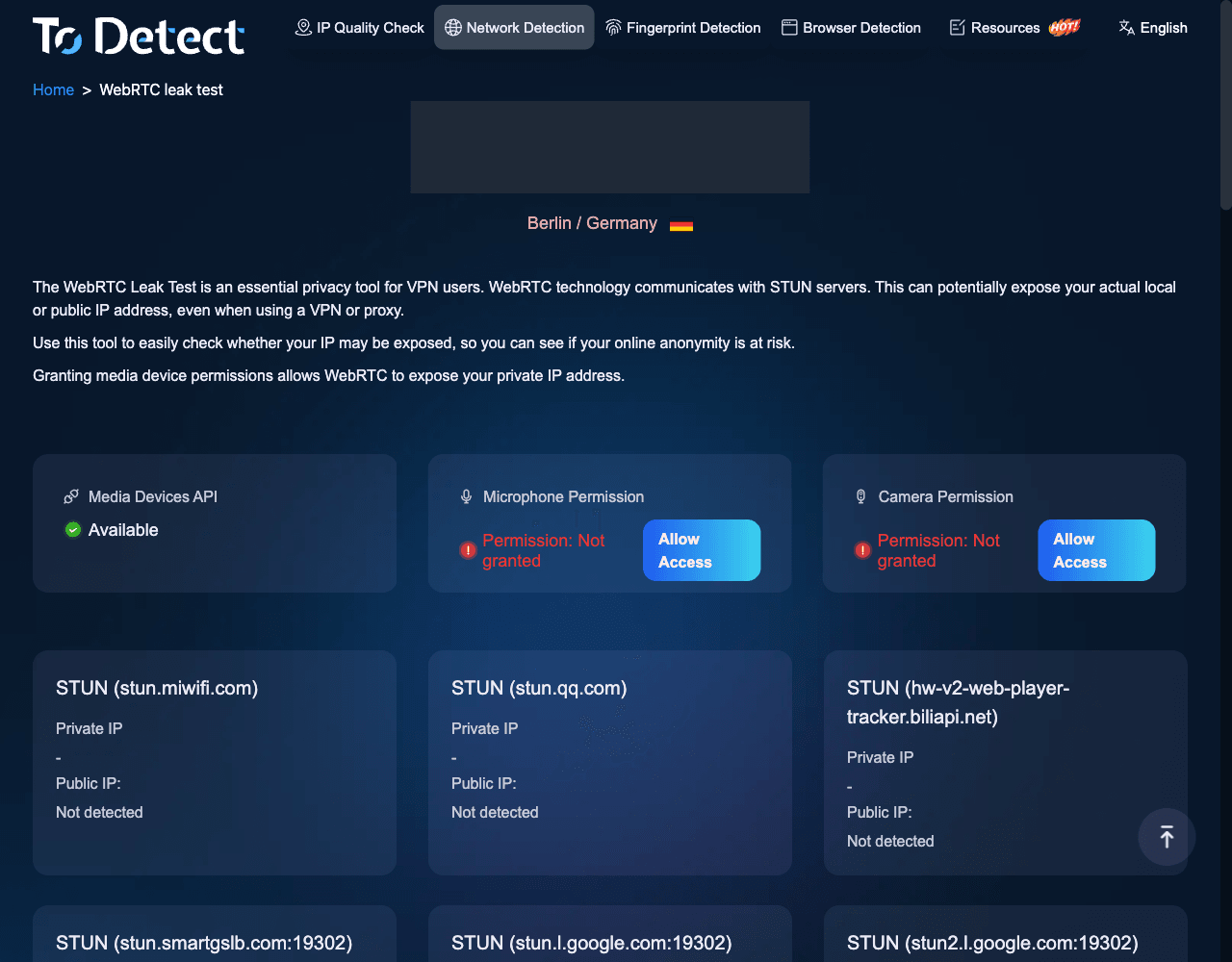 Chromium in a normal window with the profile preference: no exposure banner, all 17 servers "Not detected" (three shown).
5. Check the time zone
Open the Timezone Detection page. It compares the time zone inferred from your IP with the browser's own time zone ID. If you are checking how a site behaves for visitors in the proxy's location, such as localised pages or ad placements, the two should match.
With the proxy on and the browser left on the machine's settings, the IP-based zone was Europe/Berlin and the browser's IANA time zone ID was Europe/Vilnius. That is a mismatch in the time zone ID. The proxy changes the network path, not the browser's time zone setting. In our run ToDetect showed the same UTC offset for both; only the zone ID differed.
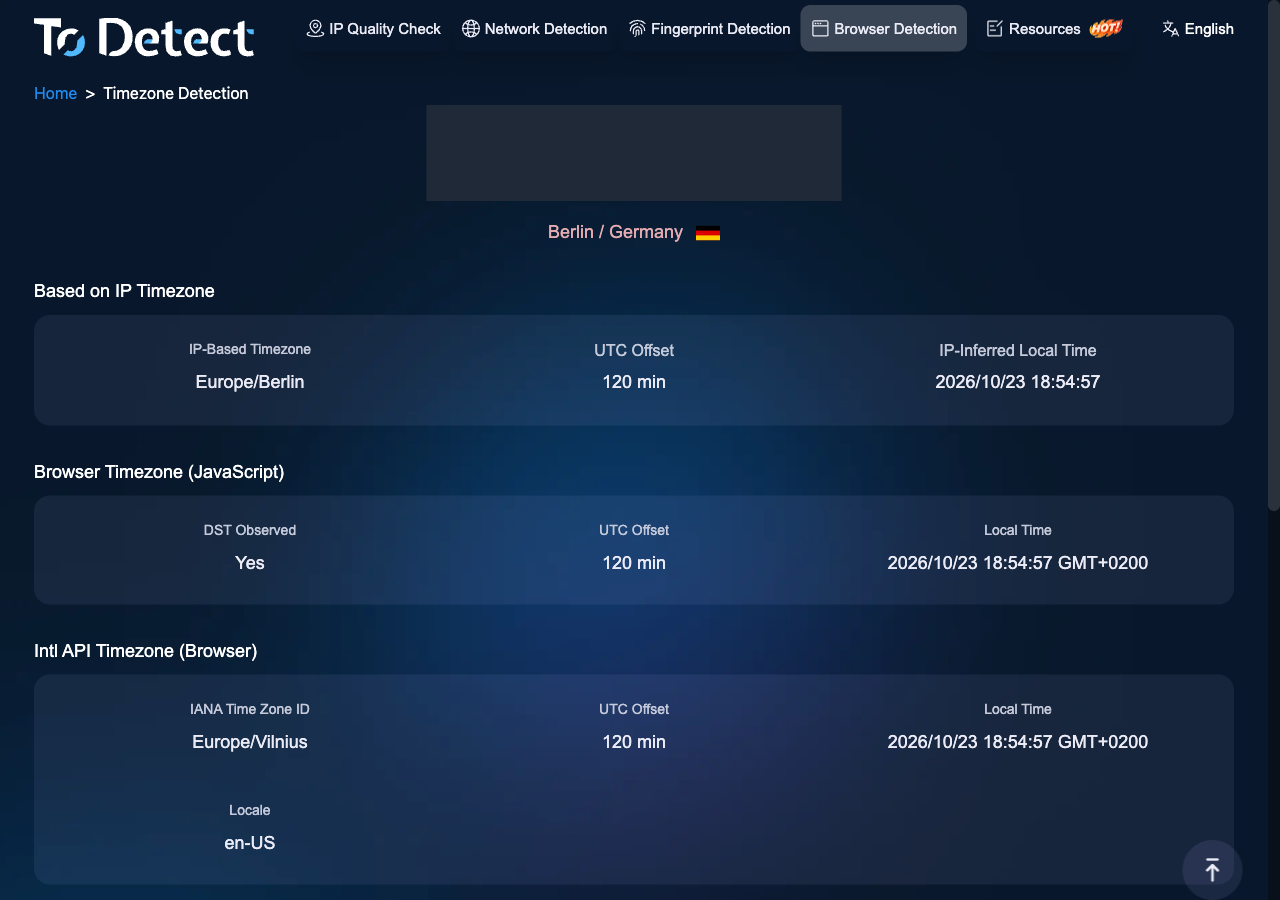 The IP-based zone follows the proxy. The browser's zone ID stays on the machine's setting.
In Chromium, we then added timezoneId: 'Europe/Berlin' and locale: 'de-DE' to the launchPersistentContext() options from step 4. This combined setup is the one behind the "after" screenshots. Both zones then read Europe/Berlin.
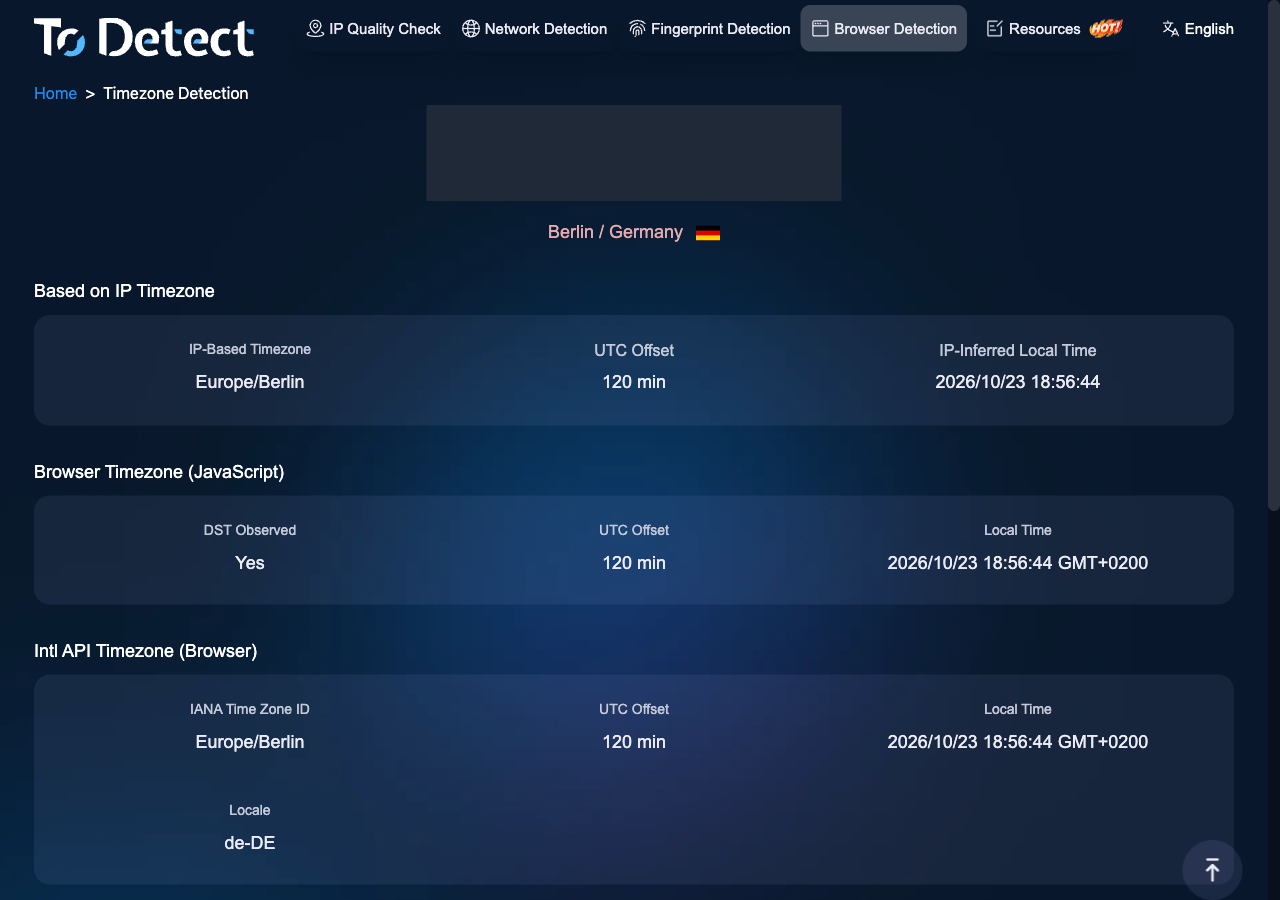 After the change: the browser's IANA time zone ID is Europe/Berlin and the locale is de-DE.
In a normal browser without automation, the time zone comes from the operating system: change the system time zone and set the language in the browser's settings. We did not test this route, so recheck the page afterwards.
6. Read the fingerprint overview last
ToDetect's homepage combines the checks above into a "Browser Fingerprint Consistency" score, which ToDetect says "does not represent a definitive pass or fail result". In a normal Chromium window with a persistent profile, it showed 65% with default settings and 87% after the WebRTC and time zone changes, as displayed. The Timezone Anomaly and WebRTC Alert deductions were gone. The WebDriver and ClientRect deductions that remained come from the automated test browser; a Language Anomaly also remained, and we did not establish what triggered it.
The Bot Detection page flagged WebDriver and Dev Tool anomalies in every run, and a Headless Chrome anomaly in the headless runs, which is expected for automation. Private-style contexts and headless mode added fingerprint deductions of their own, so for QA, ad verification or geo checks, test in the browser profile you will use for the real work.
What we did not test
We did not test SOCKS5 in the browser (Chromium does not support username/password login to SOCKS5 proxies), Safari, Edge, mobile browsers or IP rotation during a session. These results describe one line, one machine and one day.
Checklist
- Record a baseline with the proxy off: IP, ISP, IP type and DNS resolvers.
- With the proxy on, confirm the IP check shows the proxy's location, ISP and IP type, not yours.
- Confirm the DNS Leak Test lists only the proxy network's resolvers or ones you chose.
- Run the WebRTC Leak Test. If your own address appears, set Chrome's
webrtc.ip_handling_policypreference todisable_non_proxied_udpor Firefox'smedia.peerconnection.ice.proxy_onlytotrue, then rerun it. Do not rely on the command-line flag in a normal window. - If your test depends on the proxy's location, match the browser's time zone and locale to it (Playwright options, or the system time zone and browser language in a normal browser), then recheck Timezone Detection.
- Read the fingerprint deductions, separating those caused by the proxy from those caused by your test setup.
- Rerun every test after any change, in the browser setup you will actually use.
ipvolt ran these checks for its own pre-launch testing. The service is in development and access opens in early November. If you want to hear when it does, join the early-access list. One email when access opens. Nothing else.
Sources
- Chromium: Proxy support in Chrome (net/docs/proxy.md)
- RFC 8828: WebRTC IP Address Handling Requirements
- Chrome Enterprise policy: WebRtcIPHandling
- Chromium policy definition: WebRtcIPHandling.yaml
- Chrome extensions API: chrome.privacy (webRTCIPHandlingPolicy)
- Chrome Web Store: WebRTC Network Limiter
- Chromium source: content_switches.cc (force-webrtc-ip-handling-policy)
- Chromium source: headless_web_contents_impl.cc
- Chromium source: renderer_preferences_util.cc
- Firefox source: modules/libpref/init/all.js (media.peerconnection prefs)
- Firefox source: StaticPrefList.yaml
- ToDetect IP Quality Check
- ToDetect DNS Leak Test
- ToDetect WebRTC Leak Test
- ToDetect Timezone Detection
- ToDetect Browser Fingerprint Checker
- ToDetect Bot Detection