MostLogin keeps proxies in one central list and assigns them to browser profiles from there, so a proxy is configured once and reused across as many profiles and team members as you allow. That is convenient, and it is also where most setup mistakes hide: a protocol picked by default, credentials that never reached the proxy, or a proxy that was tested on one machine and shared with a team on another. This walkthrough follows MostLogin's own help center and the current client (version 2.1.9 at the time of writing) from the first proxy to a shared, tested list.

MostLogin Anti-detect Browser + Cloud Phone is an antidetect browser for multi-account work, with isolated browser profiles that carry their own fingerprint, team sharing with role-based access, batch operations, an API, and a cloud phone product that runs Android in the cloud. Proxies are a first-class object in the client rather than a per-profile text field, which is why this guide exists. MostLogin lists proxy providers it works with on its partners page; ipvolt is not live yet, and nothing below depends on an ipvolt account.
Where proxies live in MostLogin
Open the client and click Proxies in the left sidebar (the location-pin icon). The page has four tabs at the top:
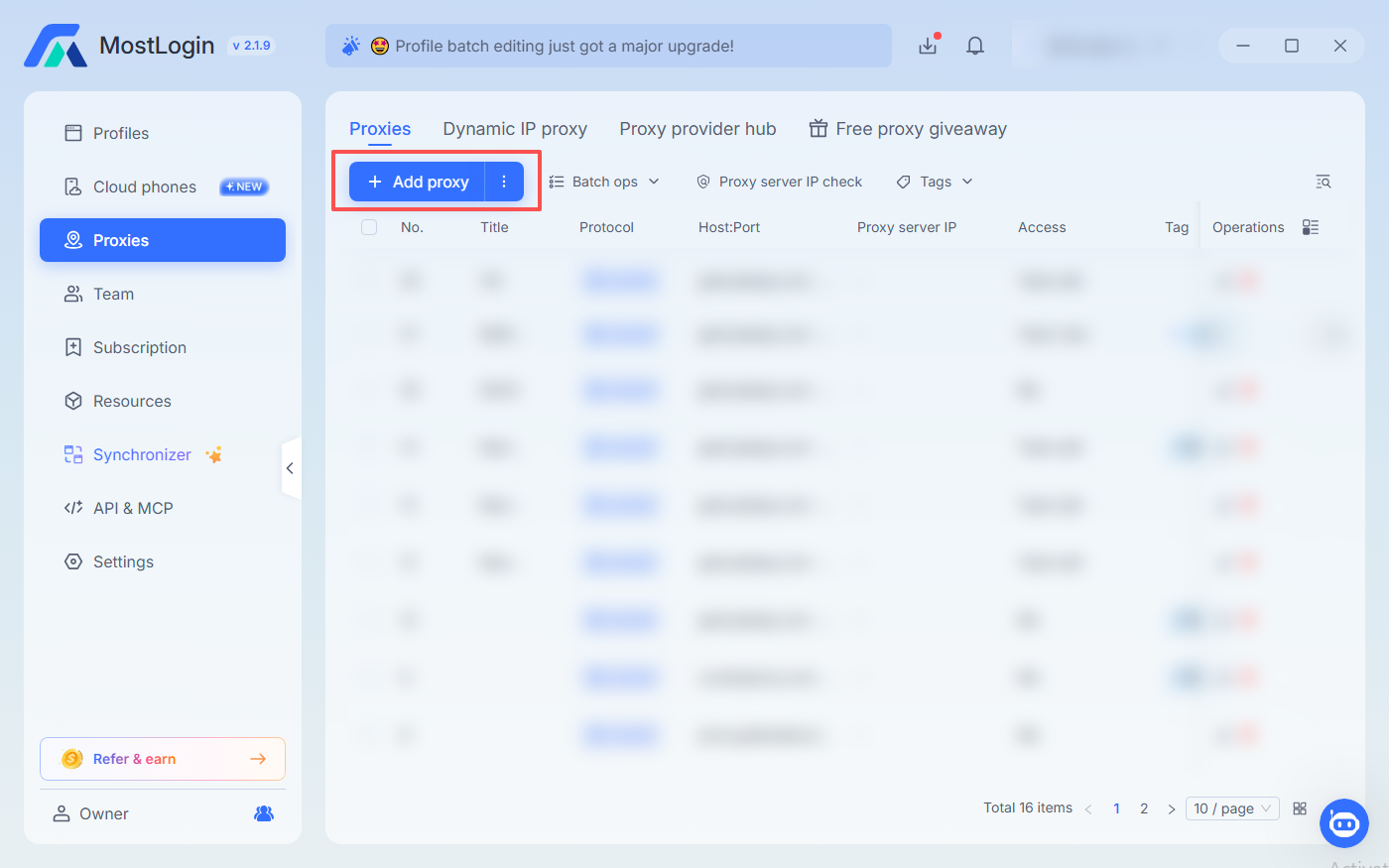
- Proxies: your saved proxy list. Everything you add by hand or by import lands here and can be attached to profiles.
- Dynamic IP proxy: proxies generated from a connected provider with a target location, for providers MostLogin integrates directly.
- Proxy provider hub: the providers that can be connected for the dynamic tab.
- Free proxy giveaway: partner traffic packages for paying MostLogin users, claimed through a one-click authorisation that creates an account on the partner's side.
The list itself has one row per proxy with the protocol, Host:Port, the proxy server IP once it has been checked, who can use it (Access), tags and the edit and delete actions. Above the list sit Add proxy, Batch ops for actions on several selected rows, Proxy server IP check and a Tags filter.
Add a proxy in MostLogin: the Basic form
Click Add proxy and stay on the Basic tab. The form asks for the same five things every proxy provider gives you, plus MostLogin's own organisation fields:
- Proxy protocol. The dropdown defaults to
socks5; HTTP and HTTPS are the other options. Pick the one your provider's dashboard states for that gateway, not the default. An HTTP gateway addressed as SOCKS5 fails at the first connection. - Host:Port. The gateway hostname or IP in the first box, the port in the second. Both IPv4 and IPv6 are accepted.
- Account and Password. Your proxy username and password, only if the gateway authenticates by credentials. Leave them empty for gateways that authorise your machine's IP instead. The eye icon shows the password so you can check for a stray space.
- Rotate URL. Optional. If your provider gives you a link that rotates the exit IP when visited, paste it here; the Rotate button next to it triggers one rotation immediately so you can confirm it works.
- Check proxy server IP. Press it before saving. MostLogin connects through the proxy and shows the detected IP and location, or an error.
Then the organisation fields: Access is required and defaults to Me; Tag helps filtering later (a platform or client name works well); Remark takes up to 500 characters of notes. Confirm saves the proxy to the list.
A note on pasting: in the Global dynamic proxies screen MostLogin auto-parses a full host:port:user:password string pasted into the Host field and fills the other boxes. In the basic form, enter the fields separately and keep an eye on the order your provider uses, because some dashboards print user:password@host:port and some print host:port:user:password.
Pick the protocol and session type on purpose
Two decisions you make in that form decide how the profile will behave for weeks.
The protocol decides how the browser talks to the proxy. HTTP proxies tunnel HTTPS traffic with a CONNECT request; SOCKS5 forwards TCP without looking at it and can resolve hostnames remotely. Most providers expose both on different ports. If you are unsure which to choose, the HTTP vs SOCKS5 guide explains what changes for DNS, authentication and error messages.
The session type decides whether the exit IP stays the same. A profile that logs into an account and stays logged in usually wants a sticky session, where the provider keeps one exit for a defined time; a profile that only fetches public pages can rotate on every request. Providers encode this in the gateway port or in the username, so the same MostLogin form entry can represent either. The rotating vs sticky guide covers how to plan the session around the smallest complete workflow, which for an antidetect profile means the whole login session.
Test the MostLogin proxy before you assign it
Use Check proxy server IP on every new proxy, and use it again after changing credentials. What the result tells you:
- An IP and location appear. The gateway, port, protocol and credentials all work from this machine. Compare the location with what you bought.
- The check fails immediately. Re-check the protocol dropdown first, then the port. A wrong protocol fails before authentication even happens.
- The check fails and your provider authenticates by IP. The machine running MostLogin must be on the provider's allow-list. Team members on other networks will need their own entries or a switch to username and password.
- The check fails only with credentials filled in. The proxy is answering
407 Proxy Authentication Required. The 407 guide walks through the order to check: gateway, method, credential scope, encoding, then the client.
A proxy that passes the check but shows the wrong country is not broken. It is the wrong product for the profile; fix the purchase, not the form.
Assign proxies to profiles and share them with the team
Once saved, the proxy is selectable when you create or edit a browser profile. Who can select it is governed by the Access column:
- Me: only your account can view, select and edit the proxy. This is the default.
- Team view: every team member can view and select it, but only you can edit the settings.
- Team edit: every team member can view, select and edit it. MostLogin shows a confirmation dialog for this one because it hands full control to the whole team.
Change access per row with the pencil icon in the Access column, or select several rows and use Batch ops → Edit access to switch many proxies at once. A practical pattern for teams: keep proxies at Team view so nobody edits shared credentials by accident, and reserve Team edit for a small operations group.
Import many proxies into MostLogin at once
Three routes exist for lists rather than single entries:
- Batch import. Click the arrow next to Add proxy and choose Batch import, download MostLogin's template, fill one row per proxy in Excel or a CSV editor, upload it and confirm. The template fixes the column order, so the
host:portversususer:passwordordering problem from the basic form does not apply. - API extraction. The second tab of the Add proxy dialog takes an extraction link from providers that hand out proxies through an API, plus an extraction method that decides when a fresh IP is fetched. The Extract button tests the link before you save.
- Dynamic IP proxy. For providers MostLogin integrates directly, the dynamic tab generates location-targeted proxies from your provider account without copying strings at all. MostLogin's own article names SX.ORG and Infatica as examples.
Whichever route you use, the result lands in the same list with the same Access, Tag and Remark fields, so the sharing rules above still apply.
Common MostLogin proxy errors and how to fix them
- Default protocol. The form defaults to
socks5. Providers that only publish HTTP gateways are common; the symptom is an instant failure on the IP check. - Credentials in the wrong field. The proxy password belongs in the proxy form, never in a website's login. Special characters in a password are fine here because the fields are separate; they only need percent-encoding when a tool wants a single URL.
- IP allow-listing on a shared list. A proxy that authorises by source IP works on the machine that added it and fails for everyone else on the team. Shared proxies should use username and password.
- Sticky sessions that expired. A profile that suddenly logs out after working for a while is often sitting on a sticky session that the provider ended. Check the provider's session length before changing anything in MostLogin.
- Proxy bypass rules. MostLogin's settings include proxy bypass options. A bypassed domain leaves the profile through your real connection, which is rarely what an antidetect profile wants; review the list if one site sees a different IP than the check reported.
- Testing on one machine, running on another. The IP check runs where the client runs. A cloud phone or a teammate's laptop is a different source network.
Using ipvolt proxies in MostLogin
ipvolt is building proxy infrastructure for developers and data teams and is not open yet. When access opens, ipvolt gateways will be entered through the same Basic form described above, with the protocol, hostname, port and credentials taken from the ipvolt dashboard, and this post will be updated with a tested walkthrough against the live service. Until then, everything on this page works with whichever provider you already use, and the guides library covers the protocol, session and authentication questions that come up before a proxy ever reaches a browser profile.
Sources
- MostLogin help center: How to add a new proxy?
- MostLogin help center: How to give proxy's access to team members?
- MostLogin help center: How to batch import proxies?
- MostLogin help center: What is dynamic proxy and how to use it in MostLogin
- MostLogin help center: Reward Center, free proxy traffic from partners
- MostLogin: Anti-detect Browser & Cloud Phone (partner link)
- MostLogin partners page